Get that magic hour look with a Lightroom Preset
Hi all followers and Lightoom Lovers!
It’s time to deliver again! This time Dustin Leader is the contributor. Dustin has helped us out before with some nice presets. This time he sent us a preset called “Magic Hour Power”. Read more
Lightroom Presets for bloggers
So you’re perhaps a blogger and want to have a set of nice preset to chose from when you’re working with your images for a blog post? I’ve just made a set of 10 presets. One of them is available here for free. The rest can be purchased from “Presets Heaven PRO“. Read more
Lightroom Camera Profile explanation
I guess some of you never use the Camera Calibration panel in Lightroom, perhaps because you don’t know what it does?
A Camera Profile is the color, contrast, saturation etc. setting that your camera vendor have set for each camera model. What it really means is that they have some guys in their office who have calibrated the camera software to achieve a specific look for each kind of photo you take. Let’s say you want to take a nice portrait photo of your mom.

This is what it looks like when shoot in JPEG-mode
The color information of that photo is mainly filled with skintones (at least that is what the guys at the office thinks). If you’re shooting in JPEG-mode, this calibration setting is embedded into the file, so Lightroom or Photoshop Camera Raw won’t be able to apply a new one. The drop-down menu in the Camera Calibration panel will only give you one choice: Embedded.
If you shoot in RAW you have more possibilities…
Let’s go back to that photo of your mom (shoot in RAW-mode).
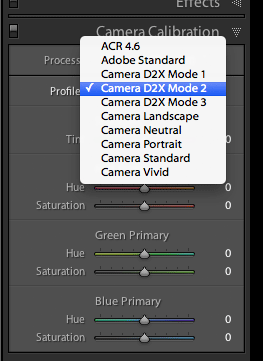
When you select the Camera Profile named “Camera Portrait”, you are applying the color settings that the vendor thinks will give you the best result for portraits with colors of skintones. The same goes for “landscape” photos etc.
Adobe is continuously adding new camera profiles for new cameras.
Now, you might wonder why these settings not are applied as default when you open your images in Lightroom? Well, it’s up to you and not your camera since it doesn’t know what kind of photo you have taken, unless you have told it by selecting a “mode” on it (most pocket cameras have a wheel/setting so you can select the kind of photo you want to shoot, portrait, landscape etc.)

Camera profiles for Nikon users (RAW-mode)
I have a Nikon camera but what does “Camera D2X mode” mean, mine is a D3!?
Despite the name, the D2X Mode 1, D2X Mode 2, and D2X Mode 3 profiles aren’t actually profiles for the D2X camera. These are profiles designed to match the corresponding Nikon Picture Controls of the same name. To make this easier to understand, open Nikon View NX (or Capture NX) and examine the Picture Controls menu. There are six built-in settings: Standard, Neutral, Vivid, D2X Mode 1, D2X Mode 2, and D2X Mode 3. Those last 3 contain the “D2X” name even for non-D2X cameras. In other words, this is Nikon’s naming convention.
Depending on what camera you have, these settings (the camera profiles in the drop-down menu) change accordingly to your image’s embedded camera settings. If you’re using a Canon camera, this list will be populated with other profiles to chose from.
The best way to use these camera profiles is simply to try them out. If you like what you see – keep it, if not – dump it :-)
You can read more about Camera Profiles here
Smart tip for your Lightroom panels
When you’re working in Lightroom your eyes can’t ignore all the panels available. Almost all of them can be expanded and collapsed using the small little arrow, or simply when you click on each panel name. This means you can have all of these panels open or closed at the same time. I’m rarely working with all of these panels at the same time, but I also don’t bother to close them when I’m done. For every panel you leave open, the scrollbar will increase in length. Scrolling up and down all the time can be both frustrating and inconvenient when you know what panel you’re looking for.
Some of the panels might never be used for some photos. Perhaps you don’t need to adjust the sharpness and remove noise etc. If those non-used panels still are open, they are just taking up space and makes it harder for you to find the ones you really want to work with. Read more
How to speed up your Lightroom performance
When your catalog in Lightroom starts getting bigger and bigger, things might get a little slower to manage in Lightroom.
Some people prefer to simply use just one catalog for all of their images. Another way of using these catalogs is to simply have one for each kind of photo. Ex. Use one catalog for weddings, one for Sports, Travel etc. Read more
10 great video tutorials for Lightroom 3
Reading a blog article is great when you’re on a bus or train. Books are great too but video is the best you can get when it comes to tutorials. Therefore I’ve searched the net for you and collected 10 great videos that will give you some good tips on what you can do, and how you do it in Lightroom 3. Get your snacks ready cause here we go… Read more