

When you’re making webgalleries in Lightroom you are able to upload your gallery directly to an FTP-server. But if you are a photographer who just wants to upload your files to an FTP-server, without the gallery files (html, flash etc.) you’re toast… until now.
Scott (Principal Photographer) mailed me and asked if I knew any good way to be able to just export the images to an FTP server.
He just needed a quick way to export his clients images into a folder on a server.
After some Googling without great results, I downloaded the Adobe Lightroom SDK and started to play around. Fortunately a sample plugin for FTP-uploads was available! So within a couple of hours I think I have saved, not only Scotts’ workflow-time in Lightroom, but a bunch of others who are looking for this feature in Lightroom. This is actually just a rip-off the sample plug-in that Adobe delivers with the Lightroom SDK. I’ve just put a logo on it and made it public to the rest of you!
Screenshots:

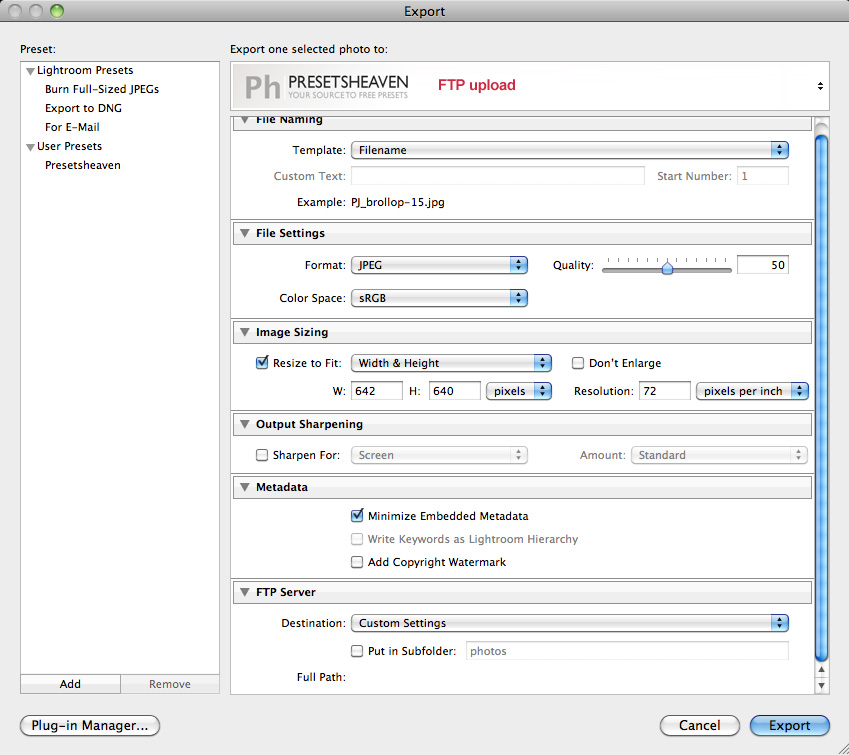
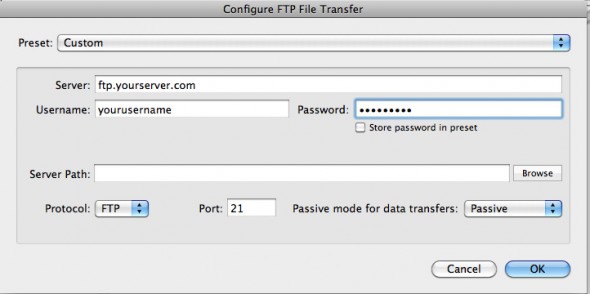
Download the PH FTP Upload Plug-in and see the installation/usage video tutorial below:
Update (091031): Due to complaints from Sean McCormack (see comment below) I have removed my PH logo in the plugin. If you want to have a “clean” plug-in you have to download the new one.
NEW: FTP Upload for Lightroom 3.0:
FTP Upload for Lightroom 2.0:
Please read:
In this video above I’ve just put my plugin on my desktop. You should put your plugins in a folder you won’t delete since Lightroom uses the plugin from that directory. If you delete the plugin from that directory, your plugin will be removed from Lightroom! Make a new folder called “Plugins” and place all of your plugins in it…
For LR2 users, you can place your plugins in this folder for convenient storage/usage (create the “plugin” folder):
[alert style=”green”]
Windows XP: %APPDATA%\Adobe\Lightroom\Plugins\
Windows Vista: Â \Users\username\AppData\Roaming\Adobe\Lightroom\Plugins\
Mac OSX: ~/Library/Application Support/Adobe/Lightroom/Plugins/
[/alert]
Thx Jeffrey for the “Plugin”-folder tip.



Hi Pierre,
Works great. Thanks for the effort. Do you test this plugin also against LR3? Keep up the good work!
Hi Joop,
Sure, I’ll check to see if it works in LR3, but since it still just a Beta release I think I wait.
Thanks,
Pierre
great little tool. Thank you!
You added a PNG to the sample SDK code and you say it’s a new plugin?
Yes I added a PNG, but NO, I didn’t say it was a new plugin. I just made it visible/usable to all who doesn’t know what a SDK is. Most Lightroom users don’t even know what a plugin is, they just want their work flow to be faster and I think I helped them by revealing this plugin.
Thanks for your comment.
//P
You imply that by spending a few hours at it, you created a tool which was already available. I’m delighted that you have made this more readily available, because people are afraid of ‘SDK’s’ for no good reason. But by putting your logo into someone else’s work as the ‘Presets Heaven FTP plugin’ is, to me, fraudulent.
Well Sean, since you think this is “fraudulent” I have removed the PH logo in the plug-in and replaced the download file with a new one. Case closed.
Pierre,
That absolutely was not what I was driving at. Having a PH branded plugin breaks no rules. My issues was that the text implied that your hard work led to the plugin based on the FTP sample, when you simply added a logo.
I just think it would’ve better presented as ‘There was an FTP plugin with the SDK. With a little tweaking, I’m presenting you with a little gift, a Presets Heaven version of the FTP plugin’. No foul. That’s the height of it. Please, put back the PH version.
You turned a sample into a tool and were up front about it. Logo it.
Pierre,
May you can add some useful adjustments to the plugin. For instance during export the plugin shows the text Uploading x photo(s) by FTP. It would be nice to use the Preset name of the FTP settings. So as a user I’m sure I upload to the right site. I created a ShutterStock FTP Upload preset called ShutterStock and it would be nice to see during export Uploading x photo(s) to ShutterStock.
Doesnt seem to work on Lightroom 2.5 64 Bits :(
Hi Ruben,
What error do you get?
Are you using Windows (version) or Mac (version)?
Hi there, thanks for replying.
Im using windows 7 64bits and Lightroom 2.5 (64bits)
The plugin shows in the plugin manager but not on the export windows :S
Ruben,
I think I know what the problem is…
If you look at the second screenshot image above you’ll see that the FTP-plugin is chosen by the name of the title and my logo in the top. In the right corner you can also see 2 small arrows (one up and one down). Press this “button” and you’ll be able to chose the plugin.
Did that solve your problem?
Ok you got me there xD problem fixed :D thanks
was looking for it on the user preset –‘
Thanks :D
Great! :-)
Hi Pierre,
I am trying to use the plugin but am having problems. Every time I try to upload an image Lightroom says that it can’t create the directory. I am trying to place my images into an existing directory that the plugin can view from the setup screen. The priviliges are set to 777 and I am usind Lightroom 2.6 on Mac OS x 10.6 (Snow Leopard).
Any assistance would be greatly appreciated.
Thanks,
Rob
Hi Rob,
It’s hard to say what the problem might be.
Have you tried to change the “passive mode” transfer setting under “custom settings”?
See screenshot: http://img.skitch.com/20100209-m1ijju3hcrdcbybhi7rqf41aet.png
//Pierre
Hi Pierre,
It took me a while to realise you had replied – sorry about that. I am using SFTP to log in to my server, so I don’t have the ability to change the passive mode. The plugin can access my server to get a directory listing, but when I try to export it still says that it can’t create the directory.
Thanks for your help on the matter.
Rob
You’re welcome Rob.
Perhaps you can change the permissions on a folder via your ftp-client first, might work?
Best regards,
Pierre
Hi Pierre,
I set the folder up as 777 and tried to upload some images, but still no joy. I don’t have any access to the server’s logs so can’t look into that either. I guess I will have to keep uploading my images manually..
Cheers,
Rob
Windows 7 64bit
Lightroom 2.7 64bit
openSUSE 11.2 x86_64
openssh-5.2p1-9.1.x86_64
It also fails for me for SFTP on 64bit Win7. When editing the preset, I have an IP address, username and password set. If I browse I get an error dialog saying that “Cannot browse the FTP server, because invalid login.”. If I store a path, say for example “/tmp” and save the preset, then try to use it, I get an error saying “The specified FTP preset is incomplete and cannot be used.”
In the plugin manager is says I have version “2.0.0.200000”
I can log in to the server perfectly using putty ssh terminal.
With an FTP client I can create directory, but Lightroom 2 and 3 both fail (passive, non-passive, passive extended) to create directories. Once a directory created with the FTPclient, lightroom can ftp photos in that directory.
Hi Eric,
I’ve heard a couple of people have had problems with this plugin.
Please check out the new version for LR 3.0 above and let me know if it works better for you.
Thanks!
Sorry for this late reaction, I’ve been to Venice on vacation :-)
I installed the new version, but the problem persists.
I read this on the net:
It seems that the export plugin doesn’t like symbolic links. on my shared hosting, I have both a directory in my home called ‘www’ and “public_html”
I used public_html instead of www as the full path and the plugin worked.
so my full path (and I just typed this manually instead of browsing for it) is:
home/public_html/xxxx/xxxx/
That seems to work.
I have just the IP adres and a personal folder/password for the FTP-server…
Regards,
Eric
After replacing my router with a newer model, even uploading photos to an existing folder fails. Passive mode works fine with my website account, but a client uses an FTP-server that only accepts active mode (they say they can’t change this). I tried Aperture with Ãœberupload, but this also refuses to upload. Only a ftp-client seems to work with that FTP-server. I asked for the full path to the specific folder I need to upload my photos, but haven’t had an answer from them. I’ll contact the people from überupload to see if they know what’s going on…
Works great!
You saved me a lot of clicking, thank you very much!
Radu
Thanks Radu!
thanks worked great for me.
Doesn’t work with Lightroom 3.2. Plugin is ‘installed and running’ but it’s absent in Create New Publish Connection services list.
is there a way to upload a zip file that includes all the exported files? if not are there any plans to ad this feature to the next update?
Thanks
Hi Amir,
No there is no function for that. Depending on what OS (win/mac) you’re running I think you could do a macro for that.
Ex. Export images to a specific folder that is being scanned by a macro that executes a command to zip the files and finally upload them by FTP. Not sure how to do it but I think it’s possible. On mac… try searching Google for automator ftp scripts. Not sure what software to use for windows though.
Pierre,
I just installed this plugin into my LR 3 and I see it as option for “Export”.
However, it would be nice if ftp is available also in Publish Connection
services (like HardDrive or SmugMug or Flicker is). In that way LH
manage the information about what pictures needs to be published or
republished after beeing updated. Do you believe, you can extend this
plugin for also this functionality?
Thanks,
Peter
Hi Peter,
I understand your request. Timothy Armes is the Guru of Lightroom plugins. He has made the plugin you’re looking for. You can find it here: http://www.photographers-toolbox.com/products/ftppublisher.php
Thanks!, Pierre
After half a year without ftp to an active/non passive ftp server, I finally found this solution:
Using Transmit allows me to mount the mentioned ftp as a disk, and I can FTP by standard export function as if it was a physical hard drive. Works great!
Hi,
Just testing your plugin and othervise working great put it can not handle the “scandinavian” characters like Ã¥ ä ö. :(
So having any of those non english chars in the folder name or in the file name will cause the transfer to fail. Anything you could do to fix that?
Hi Hannu.
You shouldn’t use characters like space, Ã¥, ä, ö, comma etc, in your file- and folder names. This because not all web browsers (language specific OS) support them and therefor it might be impossible for a user to even see your images. This is probably the reason why the ftp plugin for LR won’t work. Name the folders and files and replace those characters with compatible ones… Ã… & Ä becomes A, Ö becomes O. “space” becomes _ and so on.
As pointed out earlier, if your FTP server has a symlink in the path, the export will fail. This is because the Lr SDK method ftpConnection.exists() returns “symlink” instead of “directory”. This is undocumented in the Lr SDK API spec, and the code does not support this return. You could try adding:
elseif exists == ‘symlink’ then
— Excellent, it exists, do nothing here.
right after the check for “directory”.
I also notice that the export fails if one of the components in the remote path has permissions set to deny directory listings. Unfortunately, I don’t have a suggestion for how to fix this.
is this great plugin also available for LR4 yet?
Pierre, thanks for this great plugin. It was exactly what I needed, and was looking for. And it seems to work flawlessly with LR4.
Hello. Fine plugin, thank you. Tell me please how can I use FTP over explicit TLS/SSL with your plugin ?
Hi,
I’ve installed the plugin, it exports the picture properly to my FTP, however the picture exported doesn’t have the modifications I did with the develop mode (crop…)
is it a normal behavior or something is going wrong ?
thanks to advice
Luj
sorry my mistake, it works just fine !
I just downloaded this free plugin and installed it in Lightroom 4. Very easy to install and configure and it seems to work flawlessly too. It automagically finds the ftp settings (from Dreamweaver I think). Excellent plugin.
thank you so much for this wonderful plug-in! Very easy and useful for me.
Can you please make and update with passwords encryption for safety purposes?
Hi Pierre!
I am playing around with the plugin from the SDK but cannot find out how to get a logo on the top of the settings. Can you help me? (I just saw in the screenshots that you had the logo in your plugin before the complaints.)
Thank you so much for an answer!
Best,
Andreas
Hi Andreas!
It was way to long ago since I was playing with the SDK. Unfortunately I don’t remember how I did it :-/
Best regards
/Pierre